

Hi everyone! On this page, I’ll be sharing various SketchUp plugins released for free by developers. Feel free to download and use whichever ones suit your needs. I’ll also be posting some SketchUp models for you to test and explore. If you’re already a SketchUp pro, feel free to skip this! Cheers!
PLUGIN “PROXY DISPLAY MANAGER TOOL” V1.0.0 (FREE)
The ultimate performance optimization tool for complex 3D models in SketchUp.
by Ho Viet Bao Minh
Link Download: https://drive.google.com/file/d/1ijpxcWcksmXul04hzTC-caL1MUs1mpil/view?usp=sharing
KEY FEATURES
1. BASIC PROXY MANAGEMENT
-
Create Proxy: Convert complex objects into simple bounding boxes (wireframes).
-
Cancel Proxy: Restore objects to their original full-mesh state.
-
Hide/Unhide Proxy: Toggle the visibility of proxy wireframes as needed.
-
Hit/Unhit Proxy Tools: Click directly on objects to create or remove proxies.
-
Note: While using “Hit Proxy”, Right-Click to switch to “Unhit Proxy” mode, return to the dialog to continue, or exit the command.
2. INTELLIGENT AUTO PROXY
-
Face Count Threshold: Automatically generate proxies for objects with high face counts.
-
Smart Detection: Differentiates between planes and 3D objects to process multiple assets simultaneously.
3. REAL-TIME PROXY SWITCHING
-
Distance-Based Transformation: Automatically toggles proxies based on camera distance.
-
Close Distance: Displays full mesh when the camera is near.
-
Far Distance: Switches to proxy when the camera is far.
-
Adaptive Performance: Optimizes real-time FPS—an essential feature for large-scale urban planning projects.
4. USER INTERFACE (UI)
-
Search Function: Quickly locate specific objects.
-
Smart Filtering: Filter by All / Proxy / Non-Proxy.
-
Layer Management: Organize assets by Layer/Tag.
-
Advanced Sorting: Sort by Name, Face Count, or Type
Plugin QuadFaceTools
-
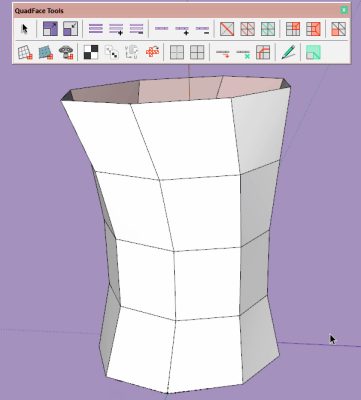
Plugin: QuadFaceTools 0.15.0 (Make sure to install the TT_Lib2 library first)
-
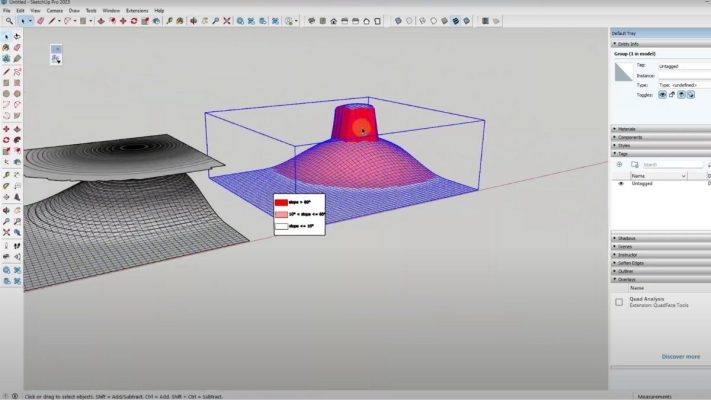
Description: A suite of tools for working with planar and non-planar quad faces in SketchUp.
-
Supported Versions: 2017 and later
-
Link: Download here
Edge Treatment Tool
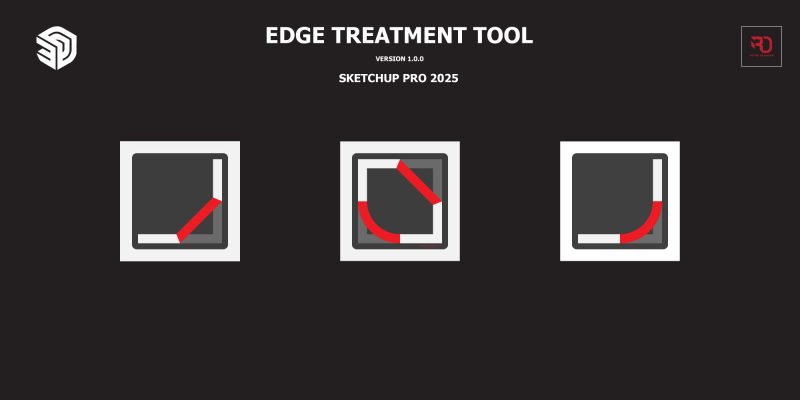
R_Edge Treatment Tool is a free SketchUp plugin I developed to help you quickly chamfer or fillet edges with ease.
KEY FEATURES
FILLET EDGE TOOL Create professional rounded corners
-
Quickly round corners with precise distances.
-
Supports selecting and executing commands from outside Groups/Components.
-
Note: Only applies to two adjacent selected edges.
-
Usage: Type the radius directly (e.g.,
1000> Enter). Type to change the segment count (e.g.,30s> Enter).
CHAMFER EDGE TOOL Create industry-standard 45° bevels
-
Fast edge chamfering with accurate offsets.
-
Supports selecting and executing commands from outside Groups/Components.
-
Note: Only applies to two adjacent selected edges.
-
Usage: Type the offset distance directly (e.g.,
1000> Enter).
BEVEL EDGE TOOL The most versatile tool—Flat or Round!
-
Set Segments = 1 for a flat Chamfer.
-
Set Segments ≥ 2 for a rounded Fillet.
-
Note: Applies to one or more independent, non-adjacent edges.
-
Usage: Hold Ctrl + click multiple edges → Apply all at once.
SUPPORT FEATURES
LIVE PREVIEW & VCB
-
Real-time preview that follows your mouse movement.
-
On-screen text displays values right at the cursor.
-
VCB Input supports:
15mm,24s,10mm,3s. -
Press Enter to apply immediately.
GETTING STARTED
Activation:
-
Shortcut: You can assign custom shortcuts for faster workflow.
-
Toolbar: Find the R_FilletEdgeTool / R_ChamferEdgeTool / R_BevelEdgeTool icons on the toolbar.
-
Menu: Extensions → ROT3D TRAINING → R Edges → R_Edge Treatment Tool → …
Basic Usage:
-
Activate the R_Edge Treatment Tool via the plugin menu or toolbar.
-
Select two adjacent edges for “Fillet” or “Chamfer.” Select one or more non-adjacent edges for “Bevel.”
-
Hover the mouse > Left Click to apply, or type the radius/distance > Enter to apply.
Installation: Install R_Lib.rbz (latest version) first, then install R_Edge Treatment Tool.rbz.
- Link: Download here
DOWNLOAD ALL PLUGIN

Download Plugin Sketchup
Link: Click here
You can find plenty of plugins on these two sites. Check them out for more options!
1. SketchUp Extension Warehouse
2. SketchUcation Plugin Store
ou need to log in to your account to download from these two sites
Download File Update
Link: Click here
Top useful and essential SketchUp plugins for design
SketchUp is a versatile platform, but its plugins are what truly elevate your design game. This list of top SketchUp plugins will push your creative boundaries, helping you master every detail of your 3D models.
V-Ray – High-Quality Rendering
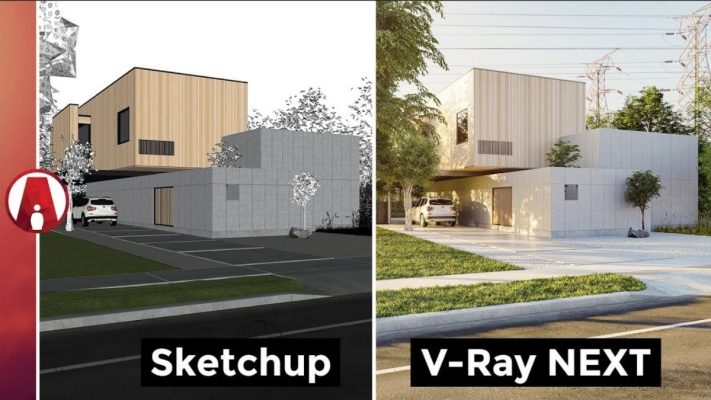
V-Ray is an indispensable SketchUp plugin for creating photorealistic, high-quality renders. This powerful tool accurately simulates lighting, materials, and environments. You have full control over the rendering process, from natural light to complex material effects. With its vast library and intuitive tools, V-Ray enables you to produce stunning visuals, taking your professional design presentations to the next level.
Enscape – Real-Time Rendering
Enscape is a powerful SketchUp plugin renowned for its real-time rendering capabilities, allowing you to view and interact with your 3D models instantly. Every change made in SketchUp is updated in real-time with high image quality, making it incredibly convenient for iterative design processes. Featuring a rich asset library and the ability to create video walkthroughs, 360-degree panoramas, and VR experiences, this plugin is an essential tool for any design presentation.
Curviloft – Complex Curvatures and Organic Shapes
Curviloft is a popular SketchUp extension used to create complex curved surfaces and organic shapes. Instead of time-consuming manual modeling, Curviloft simplifies the workflow by generating lofted surfaces from lines or cross-sections. The plugin automatically interpolates paths to create smooth, accurate meshes. This is particularly useful for modern architecture, unique furniture designs, or sculptural elements.
Artisan – 3D Modeling and Sculpting
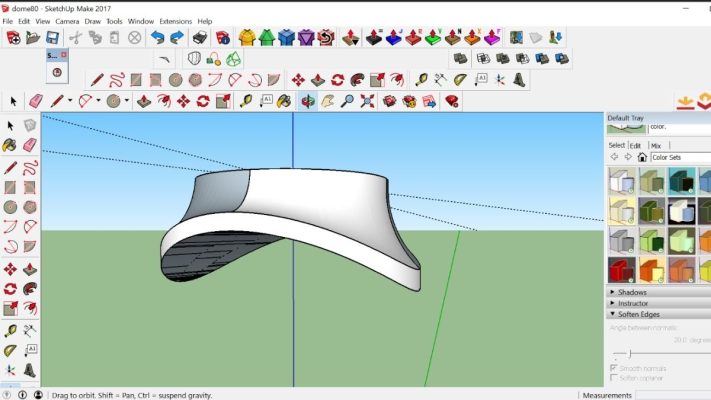
Artisan is a powerhouse tool that transforms SketchUp into a robust 3D sculpting suite. It allows you to sculpt directly on your models, creating organic shapes, free-form curves, and intricate details. You can easily smooth surfaces or add and subtract volume with a natural feel. This is an ideal SketchUp plugin for architects and interior designers looking to push their creative boundaries.
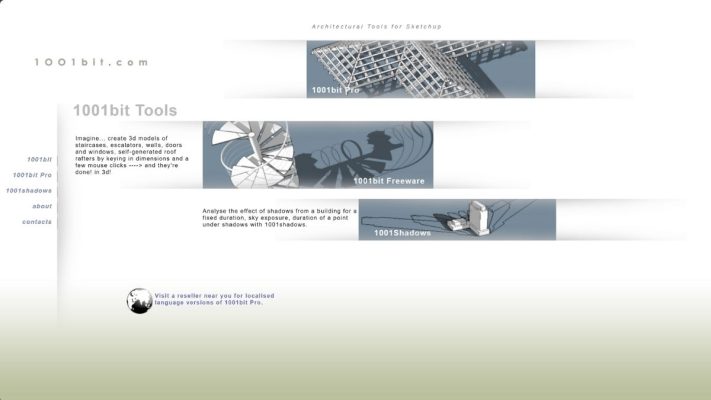
1001bit Tools – Practical Architectural Utilities
1001bit Tools is a comprehensive collection of SketchUp extensions essential for architecture and construction. It automates the creation of walls, doors, roofs, and staircases with speed and precision. You can flexibly adjust parameters and styles, significantly shortening the modeling phase while ensuring consistency. With this plugin, architects and engineers can accelerate their workflow and focus more on the creative aspects of their projects
Sketchy FFD – Geometric Deformation
Sketchy FFD is a powerful SketchUp plugin that allows for flexible deformation of objects while maintaining their underlying structure. It generates a control cage (lattice) that you can pull or push to manipulate objects into natural, flowing shapes. This tool is incredibly useful for overall form adjustments or artistic modeling, making the design process more fluid and intuitive.
FredoTools – A Versatile Support Suite
FredoTools is a renowned collection of utilities developed by Fredo6, celebrated for its versatility and power. It aggregates numerous small but essential tools to solve a wide range of modeling challenges, from generating curves and editing faces to intelligent object organization. Highly popular tools within this suite, such as Tools On Surface, Joint Push Pull, and FredoScale, are considered indispensable for advanced users.
Profile Builder – Parametric Modeling Automation
Profile Builder is a powerful, top-tier SketchUp plugin designed to automate the modeling of parametric architectural elements. By defining a profile (cross-section), you can rapidly generate walls, doors, railings, and more. Its greatest strength lies in the ability to adjust parameters even after the objects are created, ensuring both precision and massive time savings. This plugin significantly boosts productivity and design quality through efficient automation.
CleanUp³ – Model Optimization
CleanUp³ is an essential utility for keeping your models organized and efficient. It automatically removes redundant data, overlapping lines, and unnecessary elements, effectively reducing file size and improving processing speed. Using this handy SketchUp plugin periodically ensures your models remain optimized and perform smoothly throughout the design process.
OpenCutList – Automated Cut Lists and Material Management
OpenCutList is an invaluable SketchUp plugin for interior designers and woodworkers. It automatically generates detailed cut lists from your model—including precise dimensions and quantities—helping you plan material usage effectively and minimize waste. The plugin also features advanced cutting diagram optimization. With its powerful automation, it is an indispensable tool for streamlining production, saving both time and costs.
Tham khảo thêm bài viết
SketchUp Plugin – Top useful and essential SketchUp plugins for design
Tải Driver máy in hóa đơn Tawa, Tysso, Xprint, Dataprint
Dịch Vụ Sửa Camera Tận Nhà Chuyên Nghiệp – Giá Rẻ- An Toàn
Tải Font Vni-Times
Cách tắt Windows Update trên windows 11, 10 hiệu quả nhất
Lắp đặt hệ thống mạng wifi cho phòng khám MedArmor
Triển khai thi công mạng văn phòng Kiên Long Bank
Cách Xử Lý Máy In Bị Kẹt Giấy Tại Nhà Nhanh Chóng & Hiệu Quả